
Linksterz App
Your NFC characters, in your pocket.
Read your Linkzter, program any link, and keep a private local history of every tap — all stored securely on your device with AES-256 encryption. No account required.
Available on iOS & Android
Need inspiration? See ways to use your Linkzter
Having trouble with the app? Report an issue
How to Use the App
A quick tour of every screen, in the order you’ll use them.
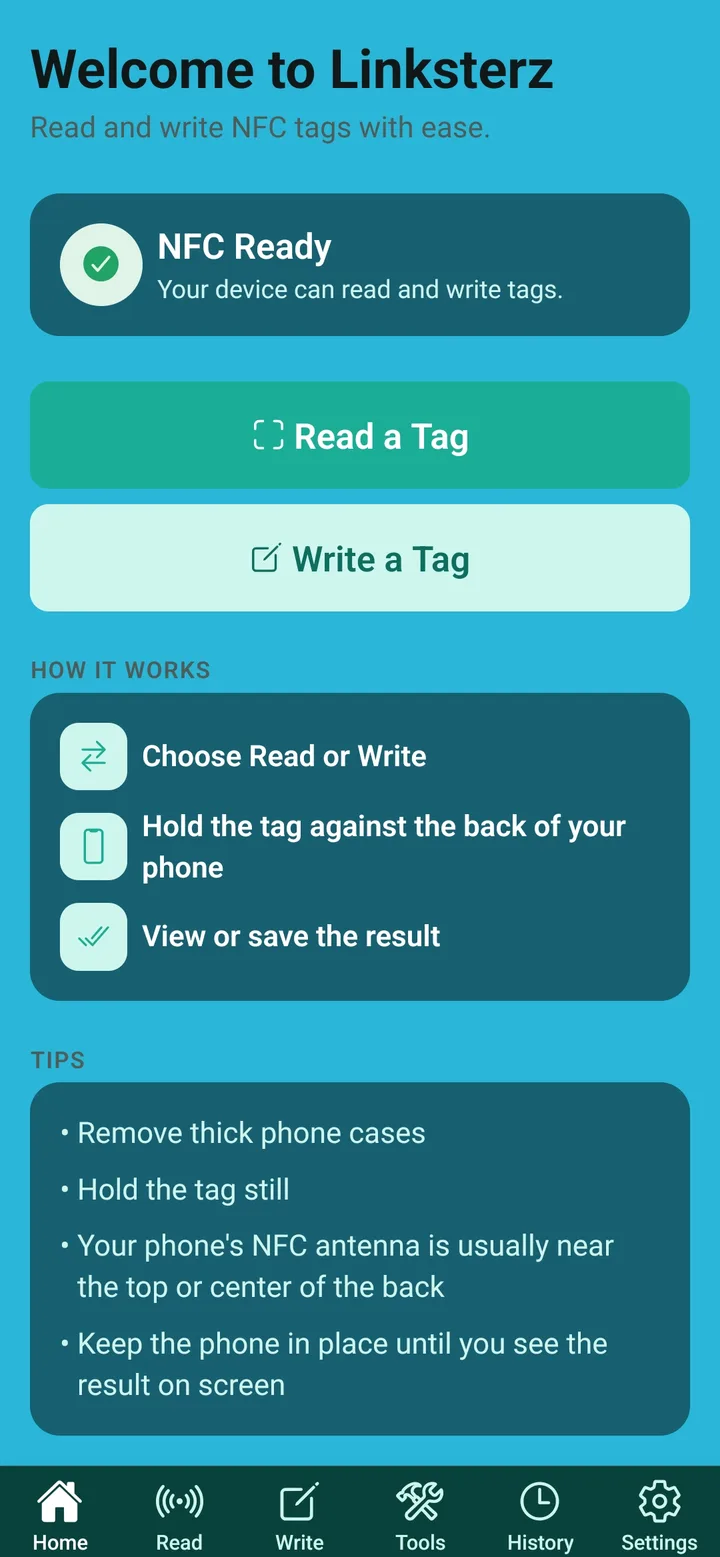
Home Step 1 · HomeStart on the Home screen
Home checks that your phone is ready and gets you reading or writing in one tap.
- NFC Ready
- Confirms your phone can read and write tags. If you don't see it, check that NFC is turned on in your phone's settings.
- Read a Tag and Write a Tag
- Shortcuts straight to the Read and Write screens.
- How It Works and Tips
- A quick refresher, plus tips for a good connection, like removing thick cases and finding your phone's NFC antenna.
- Tab bar
- The bar along the bottom takes you to every screen in this guide: Home, Read, Write, Tools, History, and Settings.
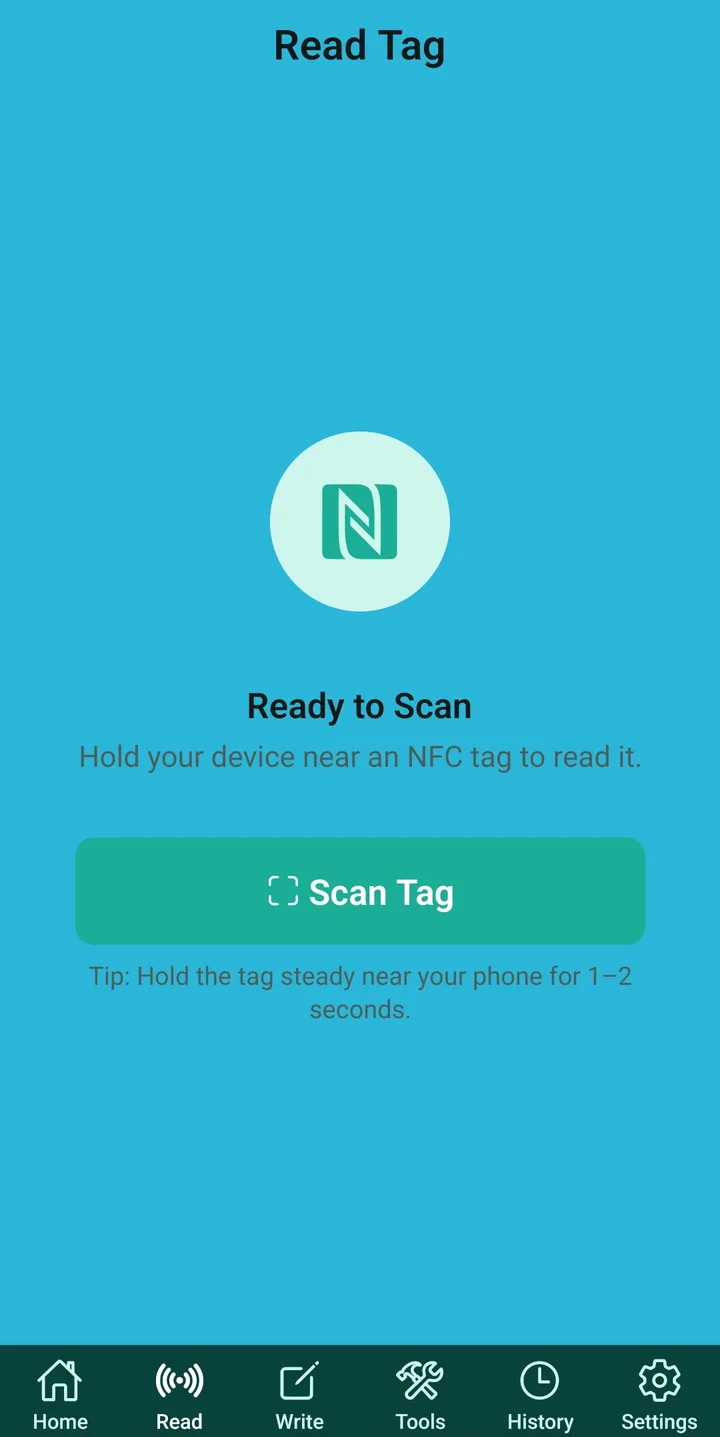
Ready to scan 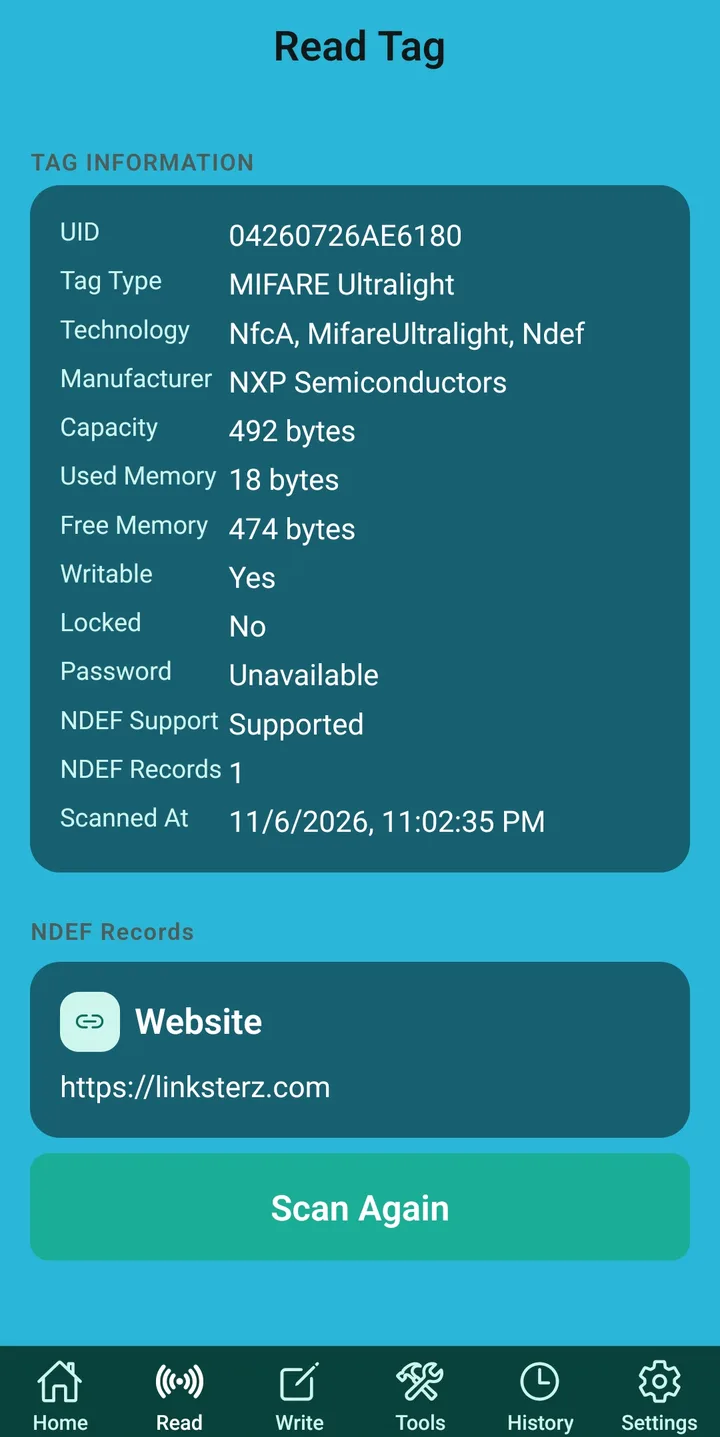
Scan result Step 2 · ReadRead a tag
See exactly what's stored on any Linkzter or NFC tag.
- Scan Tag
- Tap Scan Tag, then hold your Linkzter against the back of your phone. Keep it still for 1–2 seconds while the screen says Scanning…, or tap Cancel to stop.
- Tag Information
- The technical details: the tag's ID and type, how much memory is used and free, and whether it's writable, locked, or password-protected.
- NDEF Records
- What's actually written on the tag, such as a website link or contact card. Tap Scan Again to read another tag.
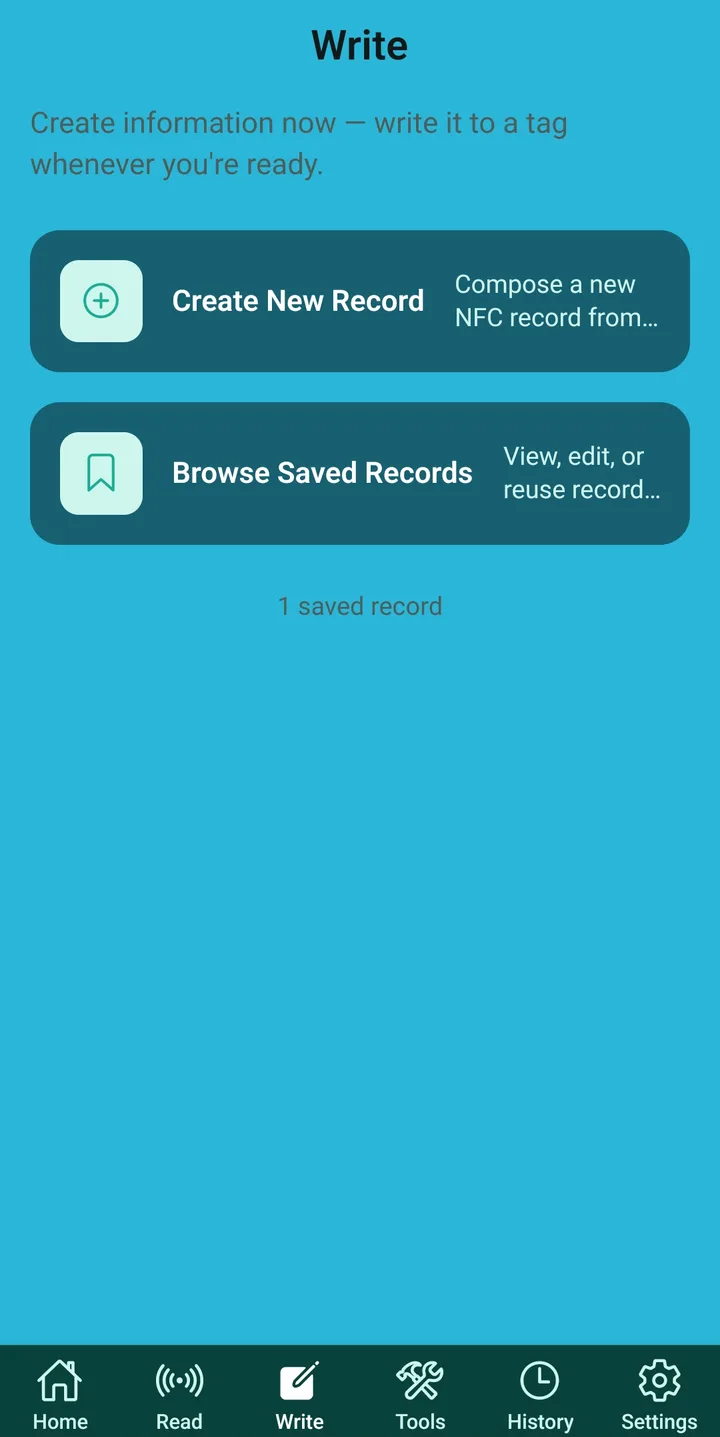
Write 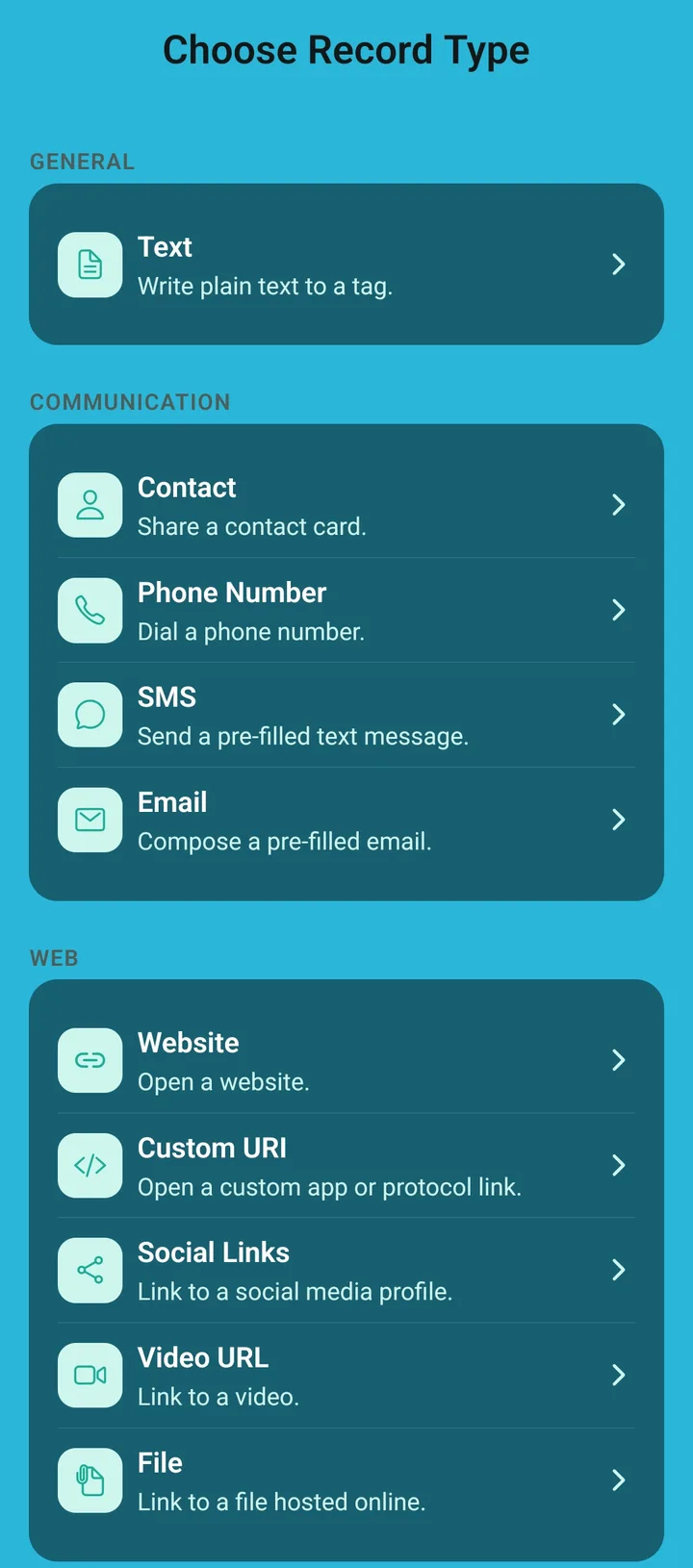
Choose a record type 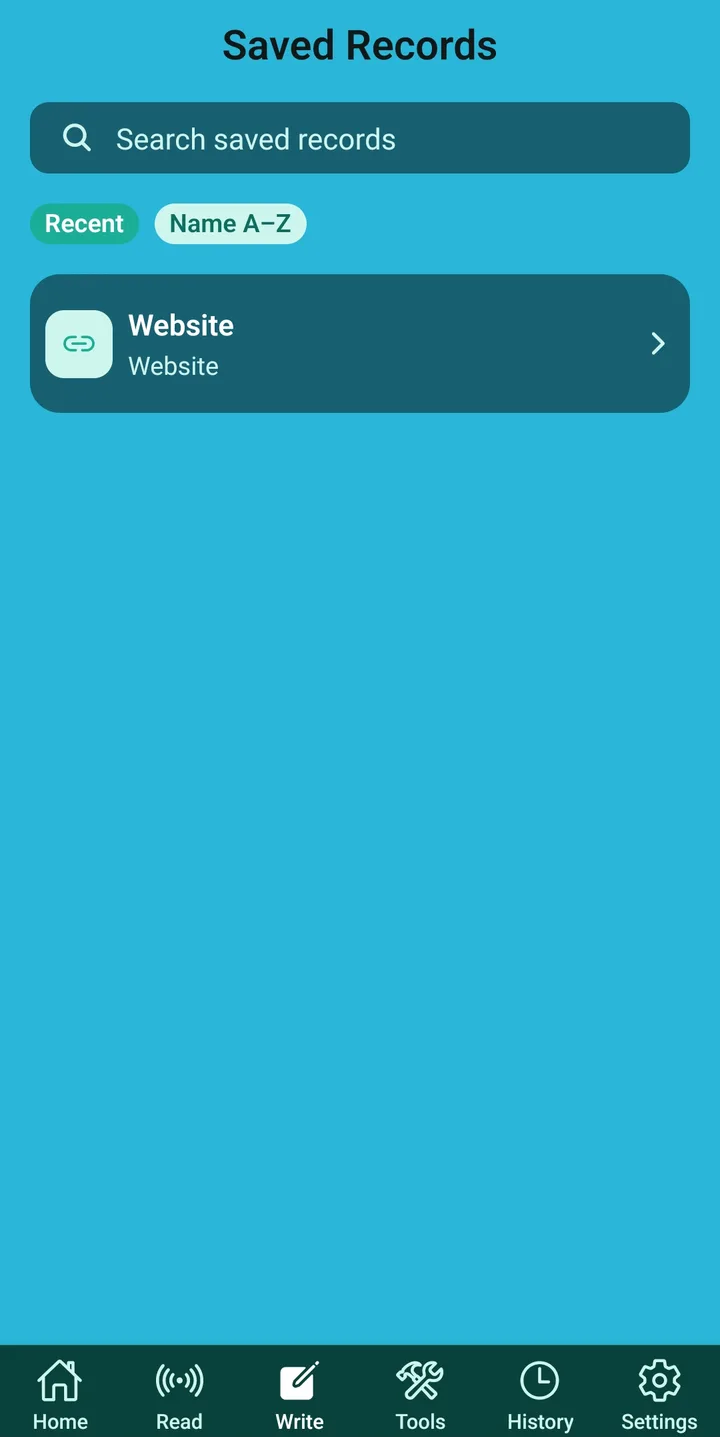
Saved records Step 3 · WriteCreate a record and write it
Create information now and write it to a tag whenever you're ready.
- Create New Record
- Choose a record type, fill in the details, and save it. Then hold a tag to your phone to write it, now or later.
- Record types
- Text, Contact, Phone Number, SMS, Email, Website, Custom URI, Social Links, Video URL, File, Address, Destination, GPS Location, Wi-Fi, Application, and Emergency Contact, grouped so they're easy to find.
- Browse Saved Records
- Every record you create is kept. Search them, sort by Recent or Name A–Z, and open one to view, edit, or reuse it on another tag.
Not sure what to write? See ideas for your Linkzter
History Step 4 · HistoryLook back at your History
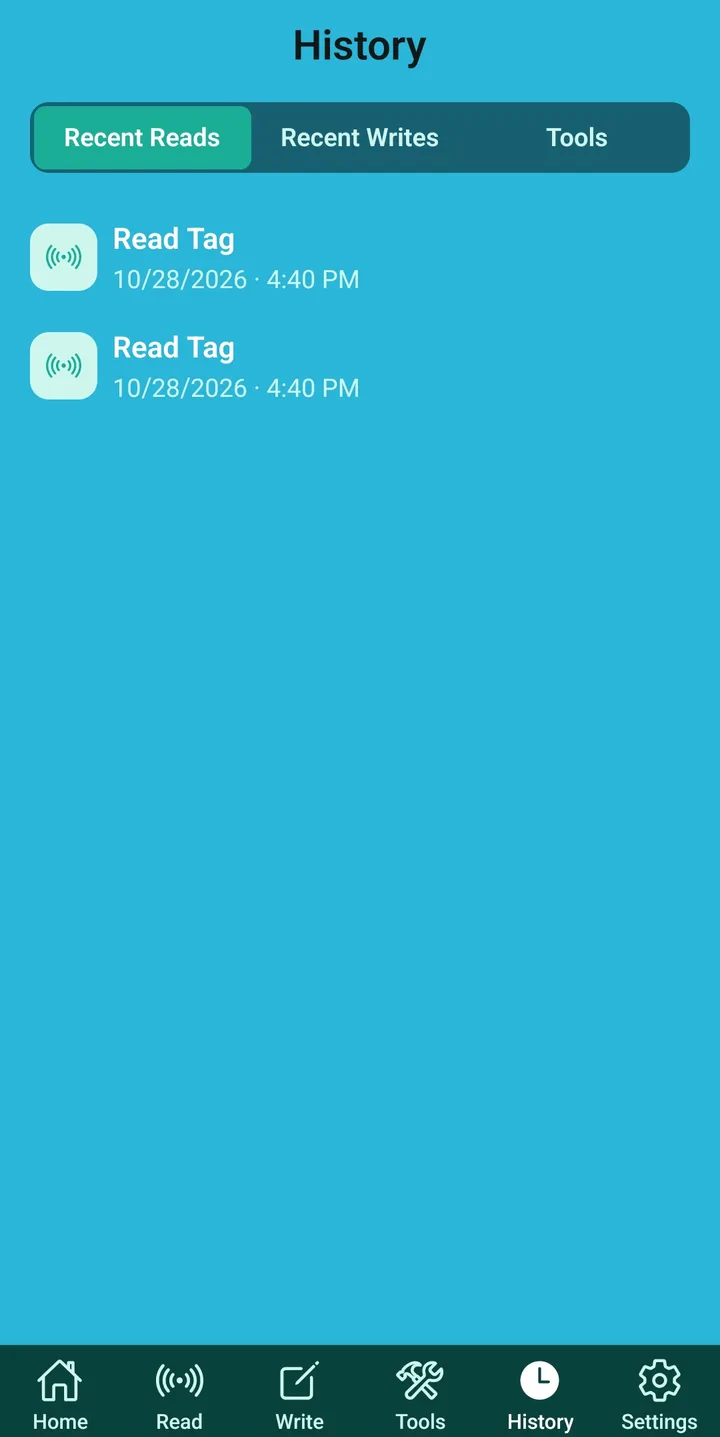
Every read, write, and tool action is logged with its date and time.
- Recent Reads
- Tags you've scanned, newest first.
- Recent Writes
- Records you've written to tags.
- Tools
- Actions you've run from the Tools screen, like erasing or locking a tag.
- Private by design
- Your history is encrypted and stays on your phone. You can clear it any time in Settings.
Tools Step 5 · ToolsManage tags with Tools
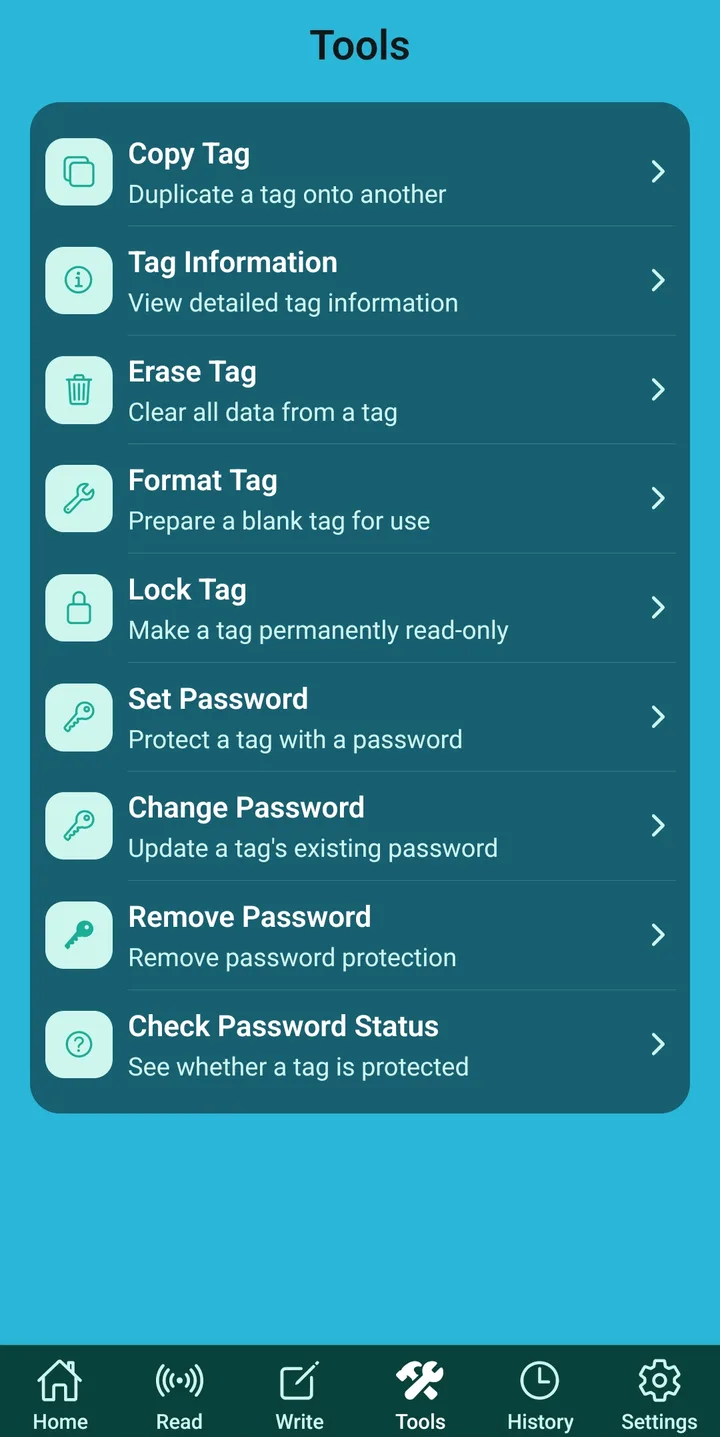
Extra controls for copying, clearing, and protecting your tags.
- Copy Tag
- Duplicate one tag onto another, handy for making a spare.
- Tag Information
- View a tag's detailed technical information.
- Erase Tag and Format Tag
- Erase clears everything from a tag. Format prepares a blank tag so it's ready to write.
- Lock Tag
- Makes a tag permanently read-only. This can't be undone, so only lock a Linkzter once you're sure its content won't change.
- Passwords
- Set, change, or remove a password to stop others rewriting your tag, and check whether a tag is protected.
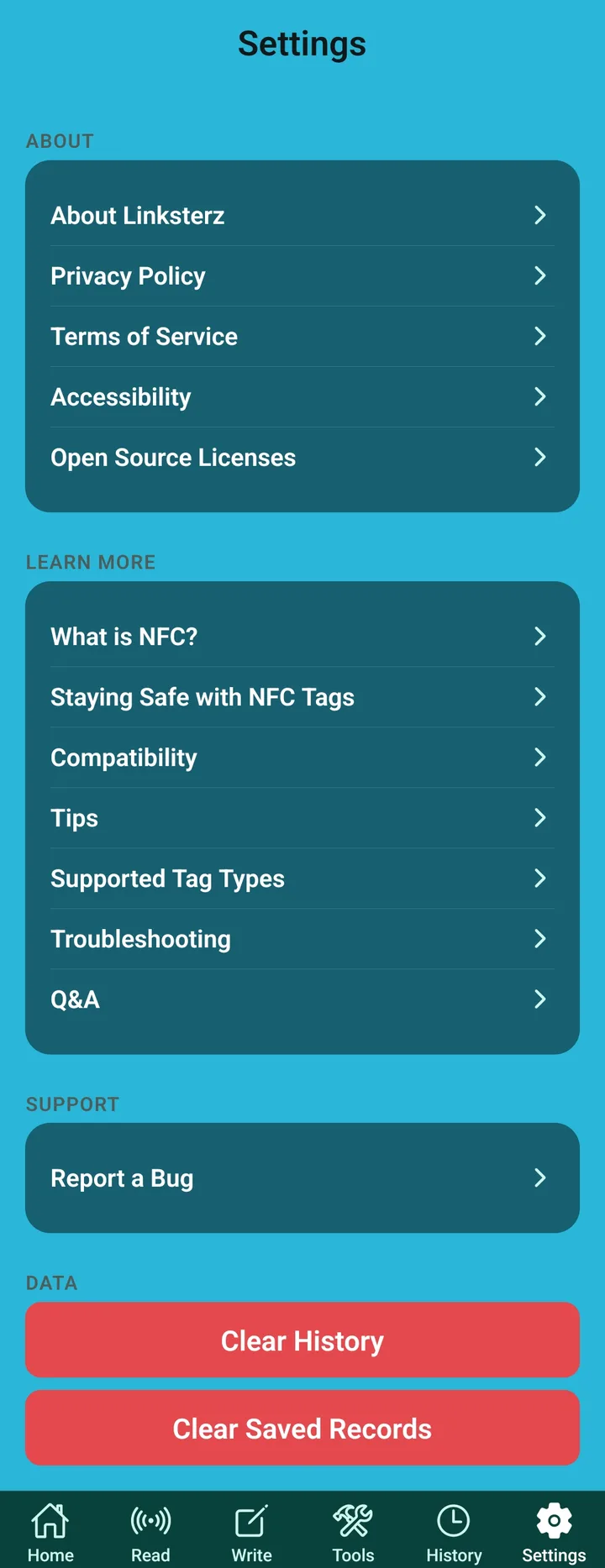
Settings Step 6 · SettingsGet help in Settings
Guides, support, and control over the data on your phone.
- About
- About Linksterz, plus the privacy policy, terms of service, accessibility statement, and open source licences.
- Learn More
- Short guides: What is NFC?, staying safe with NFC tags, compatibility, tips, supported tag types, troubleshooting, and Q&A.
- Support
- Report a Bug if something isn't working. You can also report an issue on this website.
- Data
- Clear History and Clear Saved Records remove that data from your phone.
Something not working? Report an issue